Gravity Forms A/B/C Testing
Increase conversions by A/B/C testing multiple Gravity Forms and letting data determine the best performer.
Gravity Forms A/B/C Testing
Increase conversions by A/B/C testing multiple Gravity Forms and letting data determine the best performer.
Gravity Forms Add-ons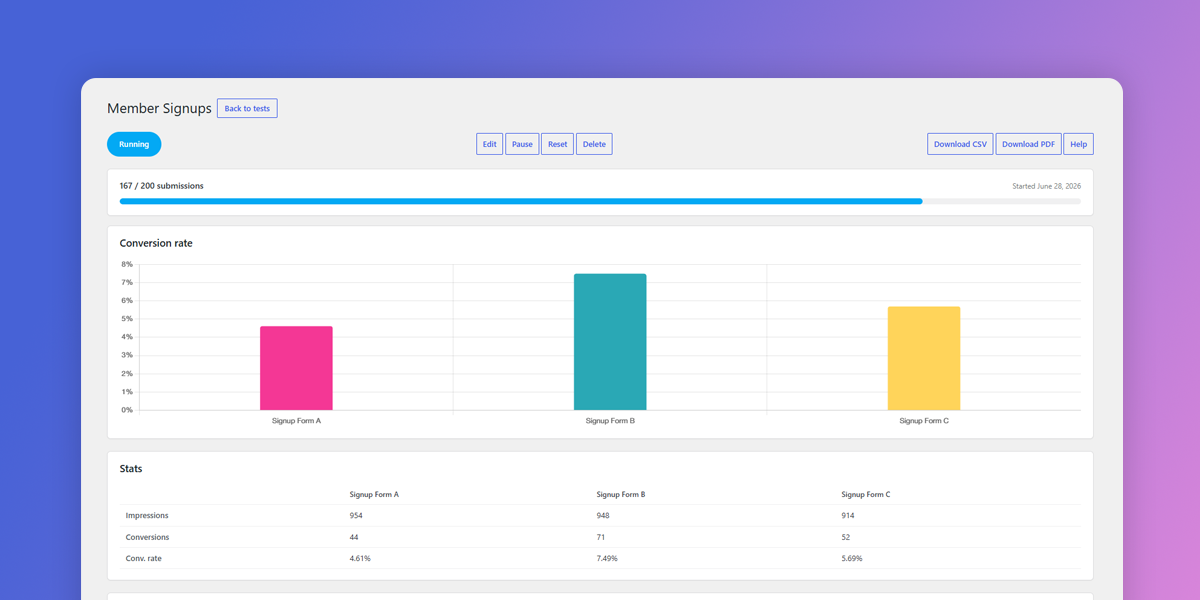
What does this plugin do?
Gravity Forms A/B/C Testing lets you compare two or three versions of a Gravity Form to see which one gets the most submissions.
It splits your visitors between the different form variations, tracks each version’s conversion rate, tells you which is winning, then automatically switches to the winning form (or another chosen form) when the test concludes.
Instead of guessing whether a shorter form, a different headline, a new button label, or a reworked layout would get more submissions, you put your form variations head-to-head. The plugin quietly splits your visitors between the versions, tracks how many people see each one (impressions) and how many go on to submit (conversions), and works out each version’s conversion rate.
It tells you which form is winning and how confident you can be that the result is real rather than just being down to luck.
When the test reaches its finish line, it automatically picks the winning form and serves that version to all visitors from then onwards.
Why do you need it?
Every form on your site is a guess until it’s been measured.
Small wording or design changes can make a surprisingly large difference to how many people complete a form, but without testing you have no real way to know which change helped and which made things worse.
This plugin replaces opinion and gut feeling with real data from your own audience, so the decisions you make are informed and backed by evidence.
Who is it for?
If forms matter to your business, this plugin helps you make them perform as well as they possibly can, using your real visitors and clear, trustworthy numbers rather than guesswork.
This plugin is suited to:
- Business owners and marketers who rely on forms for leads, signups, bookings, or sales and want more conversions from the same traffic.
- Agencies and freelancers who want to show clients measurable proof that their form changes have improved results.
- Membership, course, and e-commerce sites where registration, checkout, or contact forms are a critical step and even a small lift in completion rate can add up.
- Anyone already using Gravity Forms who wants to optimise their forms properly instead of guessing.
Confidence threshold
What is the confidence threshold?
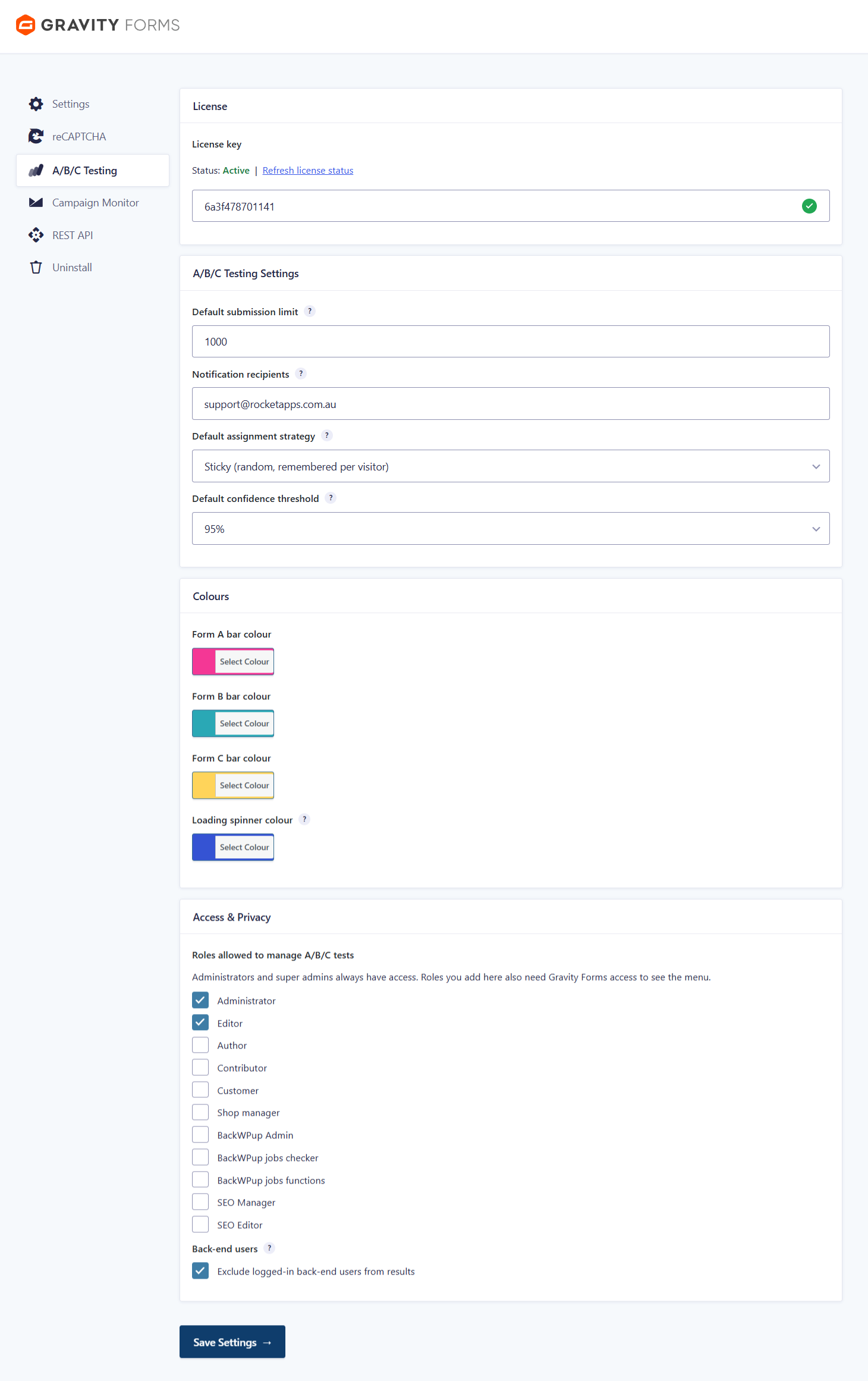
When one form is winning, the confidence level tells you how sure you can be that it’s genuinely better, and not just ahead because of random luck. A confidence of 95% means there’s only about a 1-in-20 chance the difference you’re seeing is a fluke.
Basically, the threshold is the line you want to cross before trusting the result. Once a test reaches your chosen confidence level, it’s marked as “statistically significant”, allowing you to make an informed decision.
What should I set it to?
95% is the industry standard and a sensible default. Think of it as a dial between speed and certainty:
- A higher threshold (like 99%) means you’re being extra careful. You’ll be more certain of the winner, but it takes more visitors to get there.
- A lower threshold (like 80% or 90%) lets you make a call sooner, but with a bit more risk that the “winner” was just lucky.
Can I change the confidence threshold on any form?
Yes. Initially the default setting is applied, which simply pre-fills the threshold for every new test you create, but each individual test can have a unique threshold if you need more flexibility.
Assignment strategy
When someone lands on a page with your test, the plugin has to decide which version of the form to show them. The assignment strategy is the rule it uses to make that choice. There are two options:
Sticky
Each visitor is randomly given one version of the form, and the plugin remembers their choice. If they leave and come back later, they’ll see the same version every time.
This is the recommended option for most tests. Because each person consistently sees one version, you get a clean, fair measurement of how real people respond.
Alternate
The form changes every time the page loads. One visit might show version A, a refresh might show version B, and so on, rotating through your forms.
Alternate is useful when you want each version shown an equal number of times, or for quick previews. Just keep in mind that because the same person can see different versions, it’s a much less precise way to measure genuine visitor behaviour.
Can I change the assignment strategy on any form?
Yes. Initially the default setting is applied, which is pre-selected when you create a new test. But you can switch the strategy on any individual test for more flexibility.
Run limit
The Run limit sets when your test should finish. There are three options:
Stop after a number of submissions
The test ends once your forms have collected a set total number of submissions (across all versions combined). Best when you want the finish line based on actual results, the test runs until you’ve gathered enough data, however long that takes.
Stop after a number of days
The test ends after a fixed number of days, no matter how many submissions come in. Best when you’re working to a deadline or need a predictable end date.
No limit (run until stopped manually)
The test keeps running until you stop it yourself. Best for open-ended testing when you’re not sure how long you’ll need, or want to leave it collecting data indefinitely.
When a test reaches its limit (the first two options), it concludes automatically, picks the winner, and starts showing that version to everyone.
Exclude logged-in back-end users from results
When enabled, visits and submissions from people who help run your site (administrators, editors, authors, and anyone else who has access to the WordPress backend and can edit content) are not counted in your test results.
Why would I want that?
While you’re building and checking your forms, you’ll naturally want to view and run test submissions yourself. Without this setting enabled, your testing would mix with the real numbers to skew the results. Turning it on keeps your results clean and based on real visitors.
Does this exclude my customers?
No. It only excludes back-end staff who can edit the site. Regular users, such as visitors, customers, or members, are still counted because they’re part of your genuine audience.
Understanding the numbers
Impressions
An impression is counted each time a version of your form is shown to a visitor. It’s basically “how many people saw this form.” Each visitor is only counted once per form, so the number reflects real people, not page refreshes.
Conversions
A conversion is counted each time someone successfully submits the form.
Conv. rate (conversion rate)
The conversion rate is the percentage of people who submitted the form out of everyone who saw it:
Conversion rate = conversions ÷ impressions
For example, if 500 people saw a form (impressions) and 25 of them submitted it (conversions), the conversion rate is 5%.
Conversion rates matter more than the raw numbers
Your form versions almost never get shown the same number of times (one might get 500 views and another 600) so comparing raw submissions wouldn’t be fair. The conversion rate levels the playing field by measuring how effective each form is, regardless of how many people saw it.
What happens when the test is complete?
When a test reaches its limit, it concludes automatically. Here’s what happens:
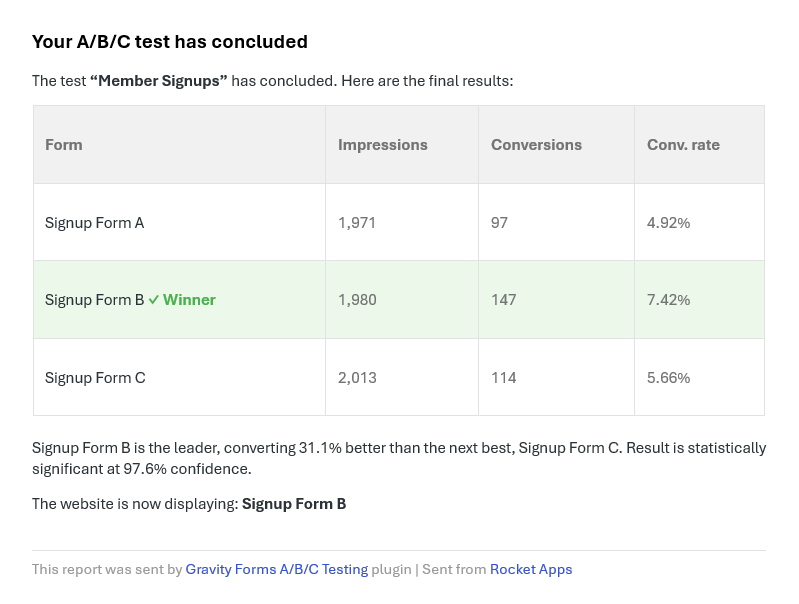
- A winner is chosen
By default this is the form with the highest conversion rate. If you prefer, you can set a test to always show a specific form when it ends. - The winning form takes over
From that point on, every visitor sees the winning version wherever you’ve placed the test, so your best-performing form is live automatically with nothing more for you to do. - People are notified
If notification recipients are specified in the settings page, an email goes out letting them know the test has finished and which form won. - Your results are kept
The full report of impressions, conversions, conversion rates, and the verdict stays available for you to review and download.
In short: the test stops experimenting and simply shows everyone the form that performed best.
Can I edit a test that is already running?
Most changes are completely safe and take effect straight away, without touching any data you’ve already collected. This includes editing:
- the test name
- the confidence threshold
- the assignment strategy
- the submission or day limit
- which form is shown when the test concludes.
There’s one important exception
Changing the actual forms in the test can be a problem. If you swap out one of the forms (A, B, or C) on a test that has already recorded data, the plugin will ask you to confirm your action, because doing so deletes the recorded impressions and conversions and restarts the test.
This might seem drastic, but the whole point of a test is a fair, like-for-like comparison. If results from your old forms were mixed with results from a new one, the numbers would be meaningless. Wiping and restarting keeps every result trustworthy.
Ultimately you can confidently fine-tune a live test’s settings at any time. Just remember that changing the forms themselves is the one action that starts the data fresh, but you’ll always be warned before you commit to that action.
Exporting the results
Once your test has collected some data, you can save its results in two formats from the test’s summary page.
Download CSV
Exports the raw data as a spreadsheet file you can open in Excel, Google Sheets, or Numbers. This is handy if you want to dig into the numbers yourself, keep your own records, or combine results from several tests.
Download PDF
Saves a clean, ready-to-share report of the test, including the results chart, each form’s impressions, conversions, and conversion rate, and the overall verdict. It’s ideal for sharing with clients, colleagues, or anyone who just wants to see the outcome at a glance without having to log in.
Both options are available at any time, even while a test is running or after it has finished.
How to embed a test on your website
There are three ways to embed a test on your website.
Method 1: Use the Block Editor
Log in to your WordPress admin area and edit (or create) the page or post where you want the test to appear.
Click the + button to add a block, search for Gravity Forms ABC Test, and select it.
The Gravity Forms ABC Test block will be inserted into the editor. Use the block settings to choose the test you want to display.

Method 2: Embed a Test in a Theme File
If you’re comfortable editing PHP and prefer to embed a test directly into one of your website’s theme files, go to Forms -> ABC Testing and copy the shortcode for the test you want to display.

Then, add the following code to the appropriate location in your theme file:
<?php echo do_shortcode('[gf_abc_test key="12345678"]'); ?>
Important: Do not embed multiple test shortcodes into the same template.
Method 3: Use a Shortcode in the Classic Editor
If you’re using the Classic Editor, go to Forms -> ABC Testing and copy the shortcode for the test you want to embed.
Then, simply paste the shortcode into the editor where you want the test to appear.
Caching compatibility
Gravity Forms A/B/C Testing is built to work correctly on sites that use server-side or full-page caching (WP Rocket, LiteSpeed Cache, Cloudflare APO, Varnish, host-level caching, and similar).
What to avoid
The only thing that interferes with tracking is caching the plugin’s dynamic request itself. To stay safe:
- Do not deliberately cache admin-ajax.php (this is already excluded by default in most caching plugins).
- Do not cache POST requests.
- Allow cookies to pass through on the plugin’s requests (the visitor cookie is what keeps a returning visitor on the same form version when using “sticky” mode).
Signs of a caching problem
If impression counts stop rising, or one version is assigned far more often than the others, your cache may be storing the dynamic request. Adding an exclusion for admin-ajax.php resolves this issue.
Page builders and optimisation
Using aggressive “delay/defer all JavaScript” or “combine JS” features can hold back the script that loads the form. If a test form doesn’t appear, try excluding the plugin’s script from JavaScript delay/defer.
Where is the settings page?
The settings for the plugin can be found among the standard Gravity Forms settings.
Go to Forms -> Settings and click on A/B/C Testing.
Where do I enter my license key?
Go to Forms -> Settings -> A/B/C Testing to enter your license key. You can obtain your license key from your order confirmation email or by logging into the License Keys page.
Is the plugin price a one-time payment or an annual subscription?
The choice is yours.
Your purchase includes 12 months of updates and support, giving you ongoing access to the latest features, improvements, and assistance whenever you need it.
After this period, you can optionally renew your license to continue receiving updates and support. Even if your license expires, the plugin will keep working without interruption. However, an active license helps ensure your site remains secure, compatible, and performing at its best.
Without renewal, you won’t receive future updates or have access to support until your license is reactivated.
For the best experience and peace of mind, we recommend renewing your license. Renewal extends your updates and support for a further 12 months from the date of renewal.
Changelog
1.0.0 (30th June 2026)
- Initial release.
 new
new
- Version: 1.0.0
- Updated: June 30, 2026
- Required: WordPress 6.0+
New! Pay in 4 with PayPal
Split 4 payments over 6 weeks

Shop With Confidence Get a refund within 30 days, no questions asked.
Help Topics
- What does this plugin do?
- Why do you need it?
- Who is it for?
- Confidence threshold
- Assignment strategy
- Run limit
- Exclude logged-in back-end users from results
- Understanding the numbers
- What happens when the test is complete?
- Can I edit a test that is already running?
- Exporting the results
- How to embed a test on your website
- Caching compatibility
- Where is the settings page?
- Where do I enter my license key?
- Is the plugin price a one-time payment or an annual subscription?
- Changelog