What does this plugin do?
Mail Log Pro gives you complete visibility into every email sent from your WordPress website.
This is helpful if you’re auditing outgoing mail, verifying that emails were sent correctly, or troubleshooting delivery problems.
No more guessing if a message was sent or wondering what content was included. Mail Log Pro lets you see exactly what email was sent, when it was sent, who it was sent to, which plugin sent it and more.
You can also optionally send mirrored copies of all outgoing emails as To, CC, or BCC to specified recipients.
Features
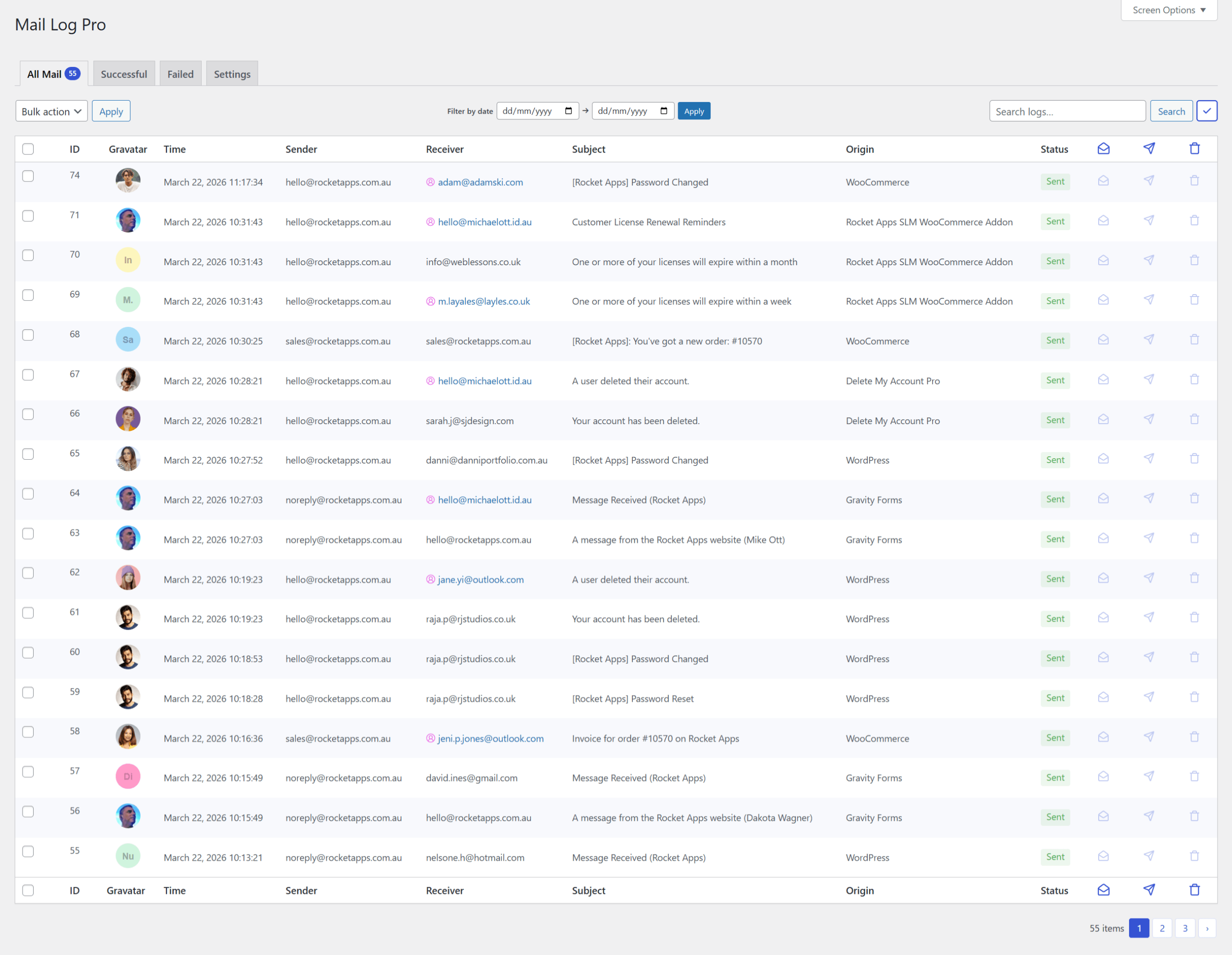
View Log Entries
- ID (primarily intended for developers – can be hidden)
- Gravatar (if recipient address is tied to a Gravatar account).
- Date and time the email was sent.
- Sending server hostname.
- Sender address.
- Recipient address.
- Email subject.
- Status (success or failed messages).
- Resend count (how many times you’ve re-sent the message).
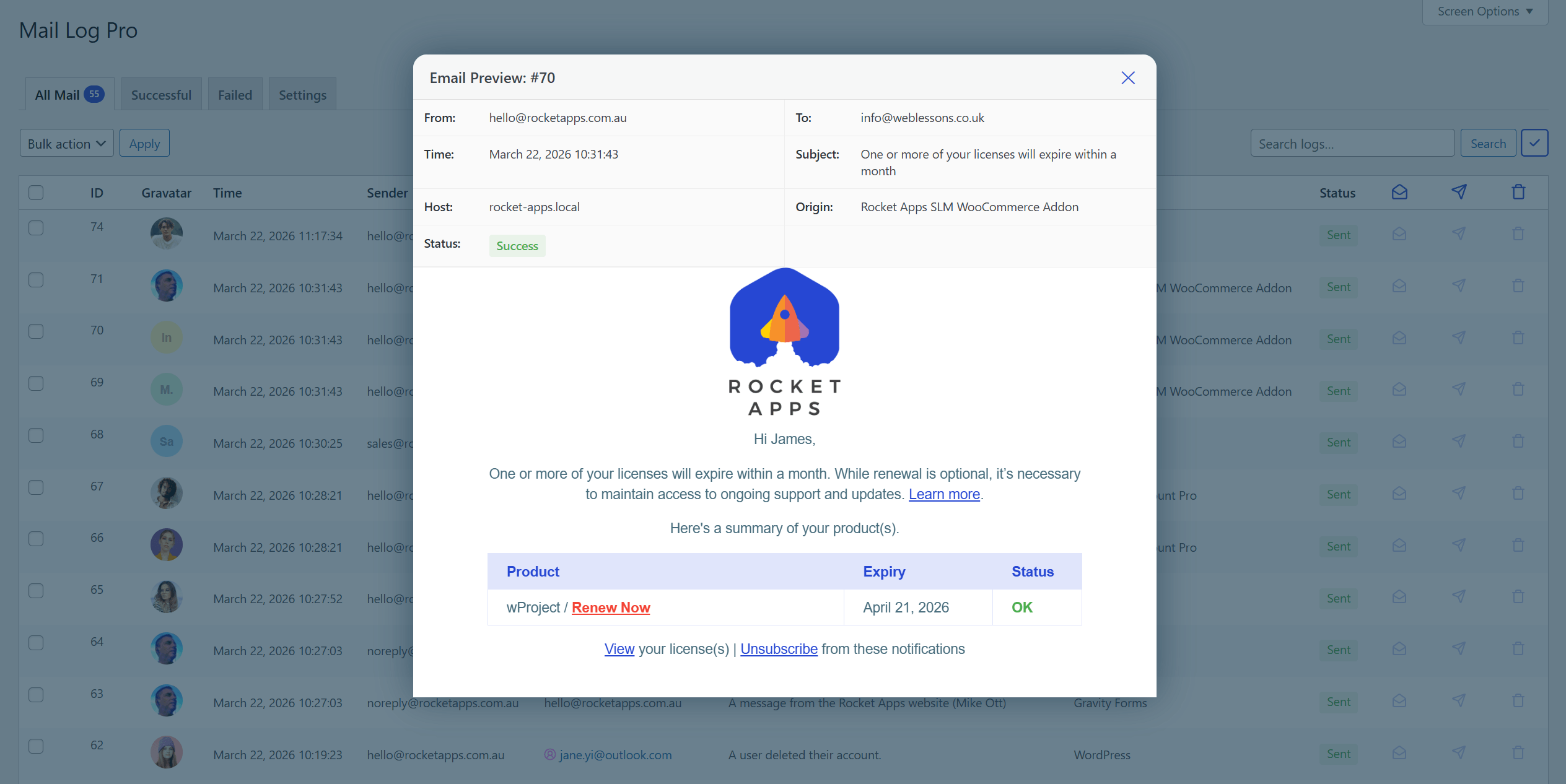
- Message content.
Filter by Status
Switch between successful and failed emails using convenient tabs.
Filter by Date Range
Show mail logs between specified date ranges.
Search
Locate messages by sender, recipient, subject, or the entire message content.
Resend Emails
Resend any email with a single click using the send icon.
Delete Logs
Remove individual log entries using the delete icon.
Bulk Actions
Delete logs or resend multiple emails at once with just a few clicks.
Screen Options
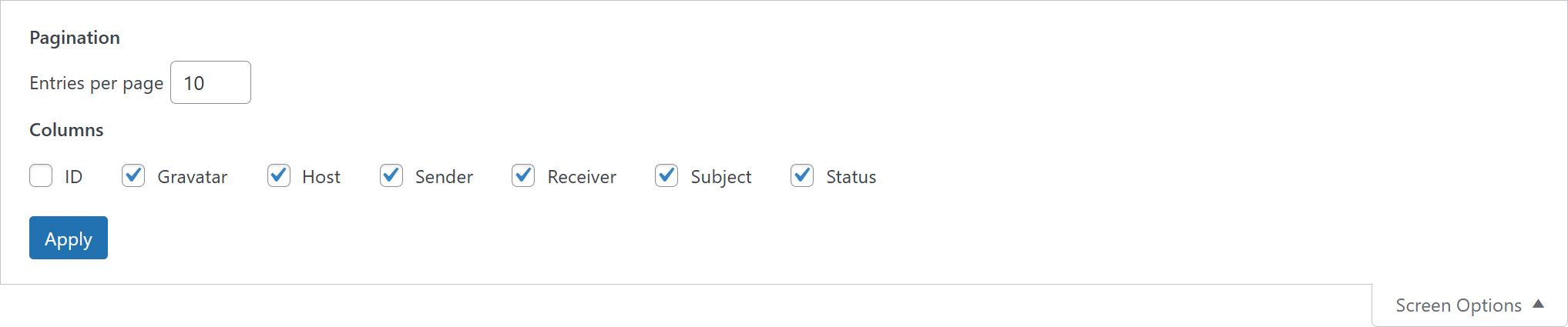
Customise the log table by showing or hiding columns such as ID, Gravatar, Host, Sender, Recipient, Subject, and Status. You can also adjust how many logs are displayed per page.
Main settings
Date & Time Format
Controls how dates and times are displayed in the admin columns.
Comfort
Adjust the padding used in mail log rows for a more compact or comfortable view.
Enable Confirmation Prompts
Require confirmation before resending emails or deleting logs.
Group by Dates
Visually group email logs by date for easier scanning.
Email Body Display
Choose how the email body is formatted in the preview panel.
Access Permissions
Select the user roles that are allowed to access the email logs.
Default Gravatar
Show a chosen icon when the associated email address does not have a Gravatar.
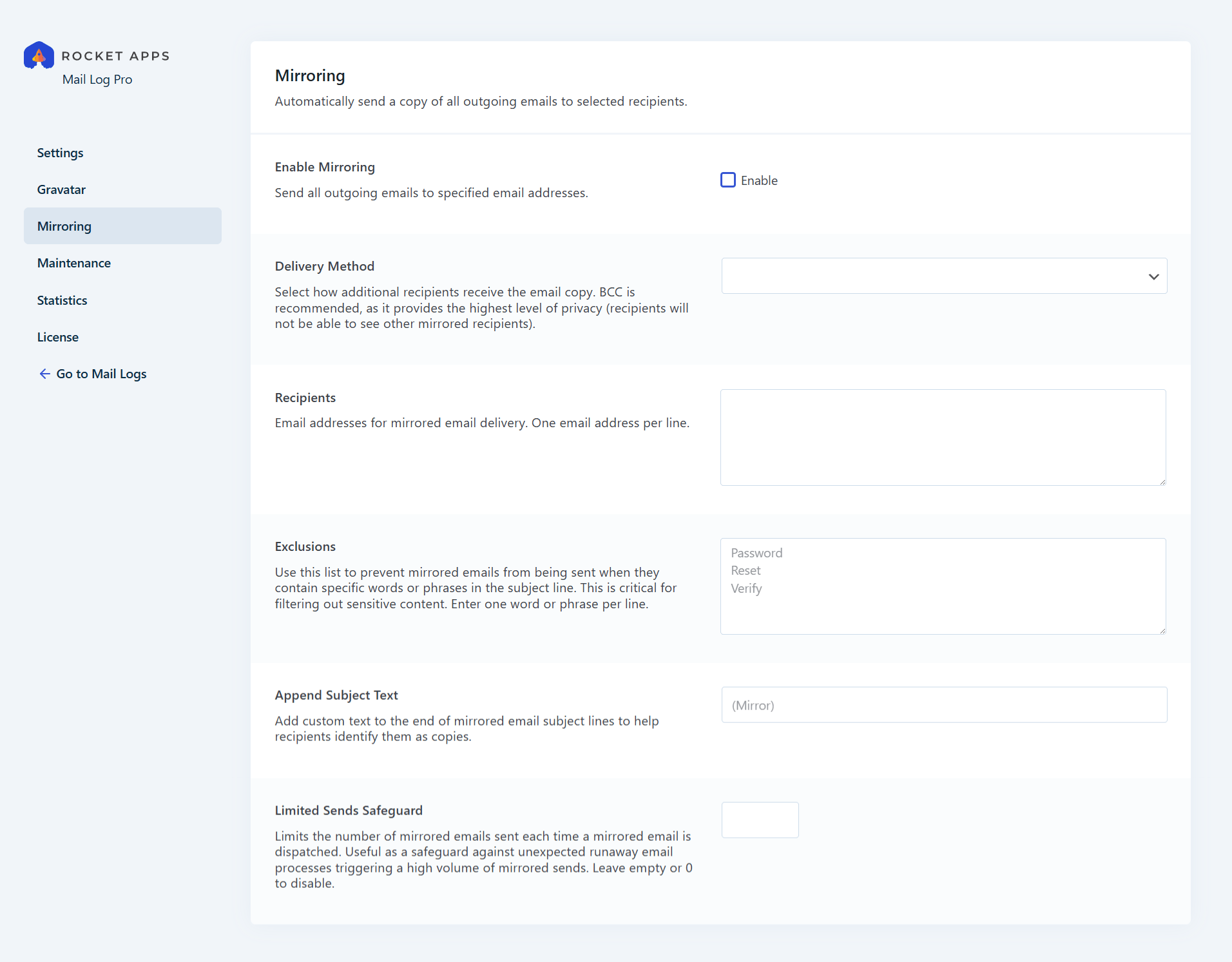
Email Mirroring
- Delivery Method: Select how additional recipients receive the email copy (CC, BCC, or standard send).
- Recipients: Add as many email addresses as you want to receive mirrored emails.
- Exclusions: Use a list to prevent mirrored emails from being sent when they contain specific words or phrases in the subject line. This is critical for filtering out sensitive content.
- Append Subject: Add custom text to the end of mirrored email subject lines to help identify them as copies.
- Limited Sends Safeguard: Limits the number of mirrored emails sent each time an email is dispatched. Useful as a safeguard against runaway email processes unexpectedly triggering a high volume of mirrored sends.
Maintenance
- Log Retention: Automatically delete email logs older than a specified number of days.
- Delete All Logs: Permanently remove all email logs from the system with a single click.
- Plugin Clean-up: Remove all Mail Log Pro settings when the plugin is deactivated.
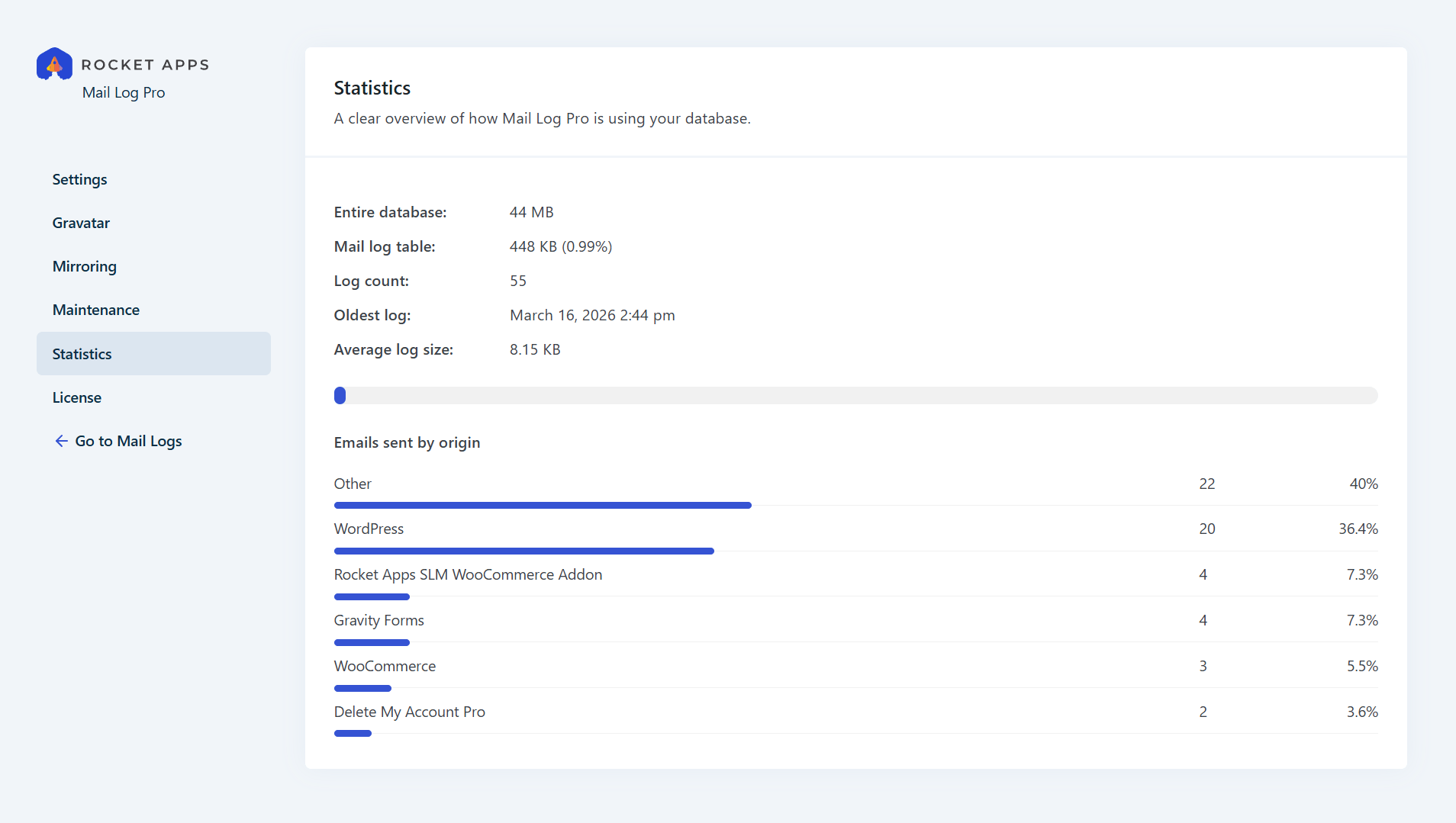
Statistics
Provides an overview of Mail Log Pro’s database usage and shows which plugins are sending emails.
How mirroring works
Enabling the mirroring option will automatically send a copy of all outgoing emails to selected recipients.
Delivery Method
Choose how mirrored emails are sent:
- To: Sends emails as standard recipients.
- CC: Sends emails as carbon copies.
- BCC: Sends emails as blind carbon copies.
BCC is recommended, as it provides the highest level of privacy (recipients will not be able to see other mirrored recipients).
Recipients
There’s no limit to the number of mirror recipients you can add. However, adding more recipients can potentially impact the performance on your website.
Each additional mirror recipient effectively multiplies the number of emails sent for any given action.
For example, if a contact form submission typically sends two emails – one to the customer and one to the site administrator – adding a single mirror recipient means those same emails are also sent to them. In this case, a total of four emails are sent.
As you add more mirror recipients, the total number of emails sent increases accordingly, which may affect performance on high-traffic sites. With this in mind, it’s recommended you keep the number of mirror recipients to a realistic limit.
Exclusions
To reduce the number of mirrored emails (and help prevent sensitive information from being shared) you can define an exclusion list of words or phrases. Any email containing these terms will not be sent to mirror recipients.
For example, adding keywords like “password” or “reset” can prevent password reset emails from being mirrored. Similarly, including terms such as “verify” can exclude account verification emails.
We recommend using this feature to help protect sensitive data and ensure compliance with your local privacy laws.
Append Subject Text
Optionally add custom text to the end of mirrored email subject lines to help recipients easily identify them as copies they have received. Examples: “(Copy)” or “(Mirror)”.
Limited Sends Safeguard
This option limits the number of mirrored emails sent each time a mirrored email is dispatched. This is useful as a safeguard against unexpected runaway email processes triggering a high volume of mirrored sends. Leave empty or 0 to disable (not recommended).
Important considerations when using the mirroring feature
Before enabling the mirroring feature, please be sure to understand the following.
Privacy & Compliance
This setting will mirror a copy of all outgoing emails, including those containing sensitive user data (e.g., password reset links, order details, or personal inquiries). Ensure your use of this feature complies with your local privacy laws (like GDPR or APP), and optionally (recommended) use the “Exclusions” feature to limit which emails are mirrored.
Performance Impact
Using this feature on a site with high email volume or a large recipient list may slow down form submissions for users, as the server must process additional mail requests per mirror recipient before the task is complete.
Deliverability & Spam
If you are mirroring to external addresses (e.g., Gmail or Outlook), ensure your SPF and DKIM records are correctly configured. High volumes of forwarded/mirrored mail can sometimes be flagged as spam by receiving servers. If mirrored emails are flagged as spam by recipients, it may impact your server’s sender reputation and result in it’s IP being blacklisted, causing all site emails to fail delivery.
Disclaimer
By enabling this feature, you acknowledge that you are responsible for the privacy and security of the mirrored data. Rocket Apps assumes no liability for the misuse of this setting, including but not limited to the accidental disclosure of sensitive information or any impact on server deliverability and reputation. If you have any doubts or don’t understand these potential implications, do not use this feature.
Pro Tips
Registered User Indicator
A pink user icon displayed next to a recipient’s email address indicates that the recipient is a registered user on your website.

Database Usage
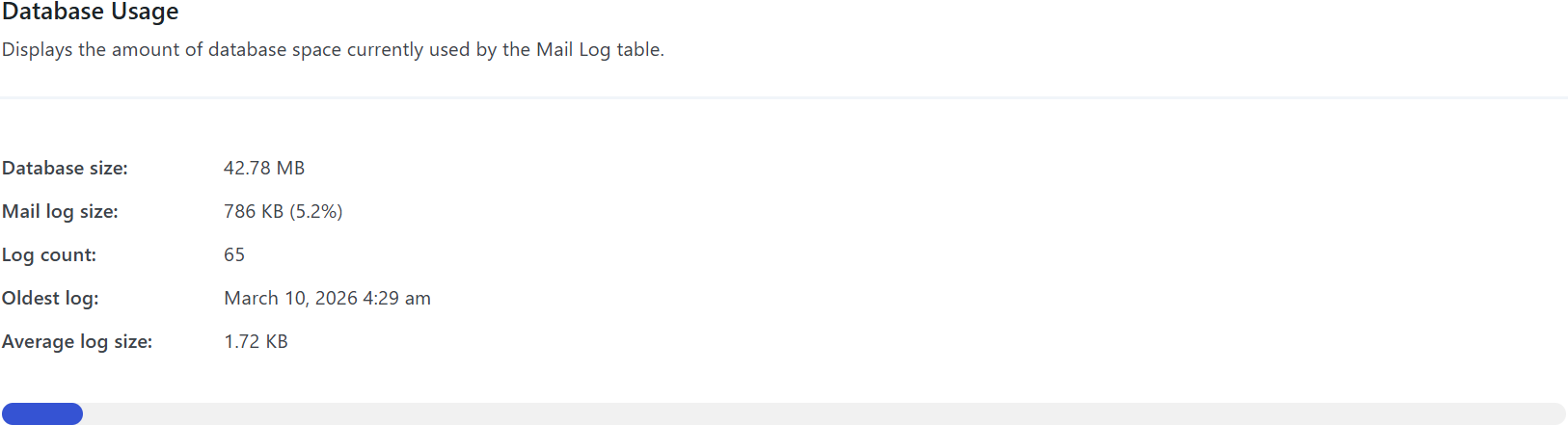
For advanced users, the Database Usage tab in the settings provides insight into how much storage your email logs are using in your database.
Hide the ID column
For most users, it’s recommended to hide the ID column via Screen Options. It’s primarily intended for developers and can be useful for debugging and troubleshooting.
Where do I enter my license key?
Go to Settings -> Mail Log Pro and enter your license key where prompted.
What does the 'Deactivate License' button do?
To use the plugin on another domain, you’ll first need to deactivate the license on the site it’s currently activated on.
Clicking ‘Deactivate License’ will prompt you to confirm before unlinking your license from this domain, allowing it to be activated on a different site.
Is the plugin price a one-time payment or an annual subscription?
The choice is yours.
Your purchase includes 12 months of updates and support, ensuring you always have access to the latest features, improvements, and support when you need it.
After this period you can optionally renew your license to continue receiving updates and support. Even with an expired license the plugin will always keep working without interruption, but an active license ensures your site stays secure, compatible, and running at its best.
Without renewal, you won’t receive future updates or have access to support until your license is reactivated.
For the best experience and peace of mind, it’s always recommend to renew your license. Renewal extends your updates and support for a further 12 months from the renewal date.
Changelog
1.0.0 (17th March 2026)
- Initial release
 new
new
- Version: 1.0.0
- Updated: March 17, 2026
- Required: WordPress 6.0
New! Pay in 4 with PayPal
Split 4 payments over 6 weeks

Shop With Confidence Get a refund within 30 days, no questions asked.
Help Topics