Waveform Player Pro
Insert waveform audio players into your posts and pages.
What does this plugin do?
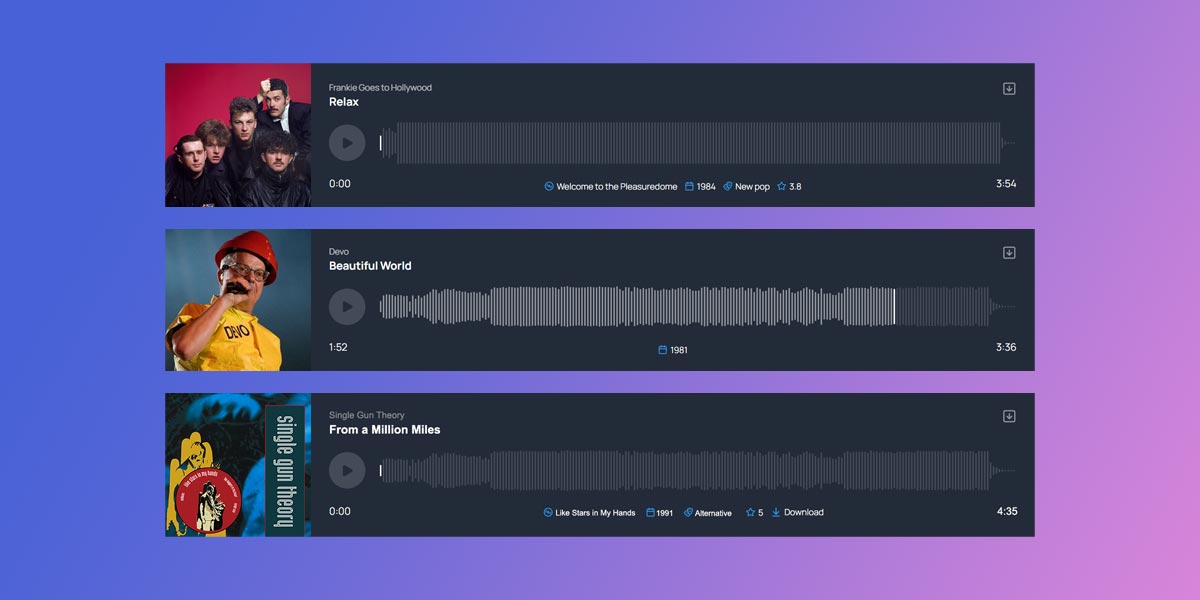
Waveform Player Pro transforms the way audio is presented on your website. Instead of a plain browser media player, it renders an interactive waveform visualisation drawn directly from your audio file’s data, giving visitors a rich, visual representation of the track before they even hit play.
The player supports multiple layouts (Studio, Compact, and Epic), has plenty of design options, and blends into any WordPress theme.
Waveform Player Pro also automatically reads embedded ID3 metadata from your audio files:
- Track title
- Album artist
- Contributing artists
- Album
- Year
- Genre
- Rating
Artwork embedded in the audio file is detected and displayed automatically, with support for a fallback image if the embedded audio doesn’t have any or if you don’t want to specify one for the audio file.
The plugin integrates with both the Classic Editor via a shortcode and the Gutenberg block editor via a native block, supports optional download buttons, role-based access restrictions, an auto-dock feature that pins the player to the corner of the screen during playback, and is fully translation-ready.

Main settings

How to insert an audio file with the block editor
Start by editing an existing post or page, or create a new one.
Insert an audio file as shown below, then use the block options in the right-hand panel to customise the player settings. If your audio file already contains embedded artwork, it will automatically be displayed. If no artwork is embedded, you can upload and assign an image.
How to insert an audio file with the classic editor
When using the Classic Editor:
- Click the WAP button
- Click Choose from media library
- Select an audio file (or upload a new one)
- Click Insert
- Optionally change the track name
Note: Audio inserted through the Classic Editor has limited functionality compared to the Block Editor.

Where do I enter my license key?
Go to Settings -> Waveform Player Pro and enter your license key where prompted.
What does the 'Deactivate License' button do?
To use the plugin on another domain, you’ll first need to deactivate the license on the site it’s currently activated on.
Clicking ‘Deactivate License’ will prompt you to confirm before unlinking your license from this domain, allowing it to be activated on a different site.
Is the plugin price a one-time payment or an annual subscription?
The choice is yours.
Your purchase includes 12 months of updates and support, ensuring you always have access to the latest features, improvements, and support when you need it.
After this period you can optionally renew your license to continue receiving updates and support. Even with an expired license the plugin will always keep working without interruption, but an active license ensures your site stays secure, compatible, and running at its best.
Without renewal, you won’t receive future updates or have access to support until your license is reactivated.
For the best experience and peace of mind, it’s always recommend to renew your license. Renewal extends your updates and support for a further 12 months from the renewal date.
Changelog
1.0.0 (1st June 2026)
- Initial release

- Version: 1.0.0
- Updated: June 1, 2026
- Required: WordPress 6.0
New! Pay in 4 with PayPal
Split 4 payments over 6 weeks

Shop With Confidence Get a refund within 30 days, no questions asked.
Help Topics